
Using Peeps · Explore
Discover
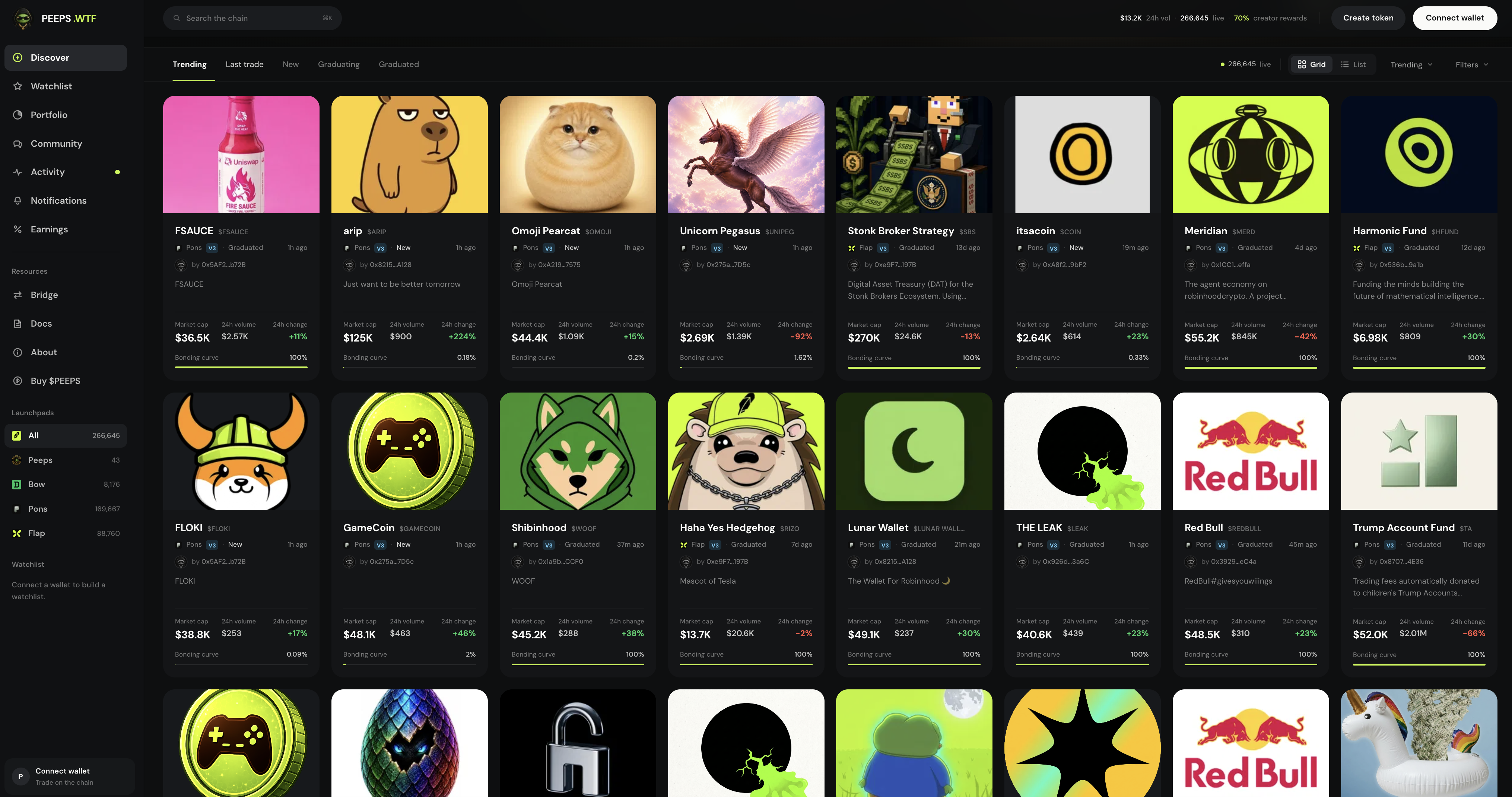
Home board at /launchpad — tabs, sorts, venue filters, Prime / King, ⌘K search, Grid / List, and watchlist stars.
At a glance
Tabs: Trending, Last trade, New, Graduating, Graduated — plus sorts, Launchpad filters, volume bands (Active / $10K+ / Under $10K), Grid/List, ⌘K, and stars.
Quick tip
On mobile, sort + filters open in one filter sheet. Sidebar includes Bridge/Docs/Buy $PEEPS.
Discover (/launchpad) is home base. The board lists live tokens with market data, progress toward graduation, venue badges, and quick ways to open a token page. Whether you are scanning for something new or hunting the final stretch before graduation, this is where most sessions start.
Discover is also where the aggregator shows up visually: you can filter by launchpad venue — Peeps, Bow, Pons, Flap, and other venues when available — so you are not hopping across websites to see what is live on Robinhood Chain.
Trending ranks, Prime / King spotlights, and busy cards are attention signals — not endorsements, audits, or safety seals. Always open the token page, copy the contract, and decide for yourself before you size a trade.
From Discover you jump into token pages for Buy / Sell, Activity for the platform timeline, Watchlist for stars, and Community for callouts and rooms. The sidebar keeps those destinations one click away alongside Bridge, Docs, and Buy $PEEPS.
Where to find it
- Desktop: Discover in the nav, or the Peeps logo home
- Mobile: Board tab in the bottom navigation
- Sidebar / menu: Discover, Watchlist, Portfolio, Community, Activity, Notifications, Earnings — plus Bridge, Docs, Buy $PEEPS
- Direct route: /launchpad
Tabs
Board tabs change which slice of the catalog you see first. Trending, Last trade, New, Graduating, and Graduated are different lenses on the same underlying launches — not different products. Prime / King spotlights sit above the grid when active — attention, not endorsement.
- Trending — activity-ranked board
- Last trade — reorders as trades land
- New — freshest launches
- Graduating — close to the progress target
- Graduated — already in pool trading
Sorts and filters
Sorts reorder the current tab; filters narrow which venues and statuses appear. Sort by market cap (mcap), ATH, 24h volume, 24h change, curve %, age (newest / oldest), last trade, or trending. Filters cover Launchpad (All / Peeps / Bow / Pons / Flap), Status (on curve / graduating / graduated), 24h Gainers / Losers, and Volume bands: Active, $10K+, and Under $10K.
On desktop, sorts and filters sit in the board toolbar. On mobile, the same controls open in a filter sheet — sort, launchpad, status, movers, and volume bands in one place — so the labels match what you see here even when the layout is stacked.
Filter by launchpad venue
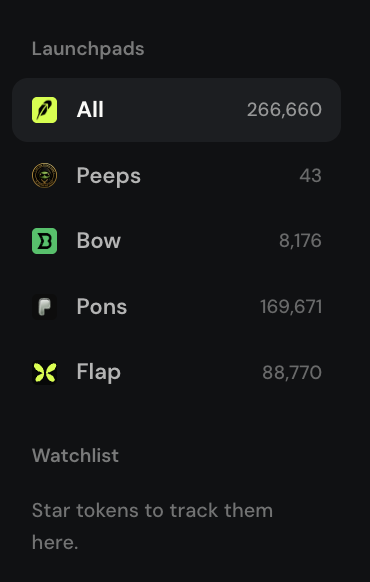
Launchpad filters let you focus on Peeps, Bow, Pons, Flap, or All. A venue is which launchpad a token came from — not a quality score. Narrowing to Peeps is useful when you only want Peeps-native Classic V3 or Tax V4 launches.
- Venue = which launchpad originated the token
- Aggregation does not make a token safer
- Always open the token page to verify the contract
Views, search, and stars
- Grid or List view — switch layout without losing your filters
- Search with ⌘K / Ctrl+K — jump by name or ticker
- Live ticker — tape of recent activity across the board
- Watchlist stars — save tokens from cards or token pages (connect to sync)
- Prime / King — spotlight rows when the product surfaces them
Pick a tab
Start with New for fresh launches, Trending for activity, Graduating for the final stretch, or Graduated for pool trading.
Sort and filter
Open Sort for mcap, ATH, volume, change, curve %, age, last trade, or trending. Narrow by Launchpad, Status, Gainers/Losers, or Volume.
Search or star
Hit ⌘K / Ctrl+K for search. Star tokens to revisit from Watchlist in the sidebar.
Prime / King spotlight row
Image placeholder
Spotlights draw attention only
Prime and King rows spotlight launches under product rules so they are hard to miss. Treat them as discovery flavor — not an audit. Market cap and volume on the card are snapshots; verify the contract before you size a trade.
- Spotlight ≠ endorsement
- Grid / List and live ticker keep scanning fast
- Open the token page for chart, chat, and Buy / Sell
Terms you will see
- Discover tabs
- Trending, Last trade, New, Graduating, Graduated.
- Launchpad filter
- All / Peeps / Bow / Pons / Flap — which venue originated the token.
- Prime / King
- Spotlight cards for standout launches — attention, not endorsement.
- Curve %
- Sort / progress toward graduation on the bonding-curve path.
- Grid / List
- Two board layouts for the same filtered set of tokens.
- ⌘K / Ctrl+K
- Keyboard shortcut to open Discover search.
- Watchlist / star
- Save a token to revisit later; syncs when your wallet is connected.