
Launching
Promotions
Optional partner or campaign codes on Classic V3 and Tax V4 create — preview terms before you confirm, or leave blank for standard launches.
At a glance
Optional partner/campaign codes on Classic V3 or Tax V4 create — preview terms before you confirm, or leave blank for standard launches.
Quick tip
Trusted partners only. No preview success → do not confirm. Empty Promotions is normal.
Sometimes partners or campaigns share a promotion code. On Classic V3 or Tax V4 create forms you can open Promotions and enter one or more codes before you launch. Codes are optional — the standard launch path works with the field left blank, and many strong launches never use a code at all.
Promotions exist to apply partner or campaign terms that the form can preview for you. The preview is the source of truth for what changed: wait for success, read the new lines, then decide whether to keep the code or clear it. Never confirm a create transaction while the preview is still loading or showing an error.
Promotions are not a hidden backdoor to rewrite someone else’s token, and not a reason to share your seed phrase. If a stranger DMs you a “guaranteed” code that requires payment or a seed, walk away — that is a scam pattern, not Peeps support.
Where to click: /launchpad/create → Instant or Bonding → Classic or Tax → Promotions (often near socials / review). You can enter up to two codes when the UI allows; follow on-screen messages if kinds conflict.
Optional promo codes
On Classic V3 or Tax V4 create forms, Promotions lets you enter a partner or campaign code before launch. Codes are optional — leave the field blank for standard terms. After a valid code, wait for a successful preview and read what changed; if anything looks off, clear the field and continue.
- Gift-style and referral-style codes are labeled after validation
- Do not stack two codes of the same kind
- Never pay strangers for a “secret” code
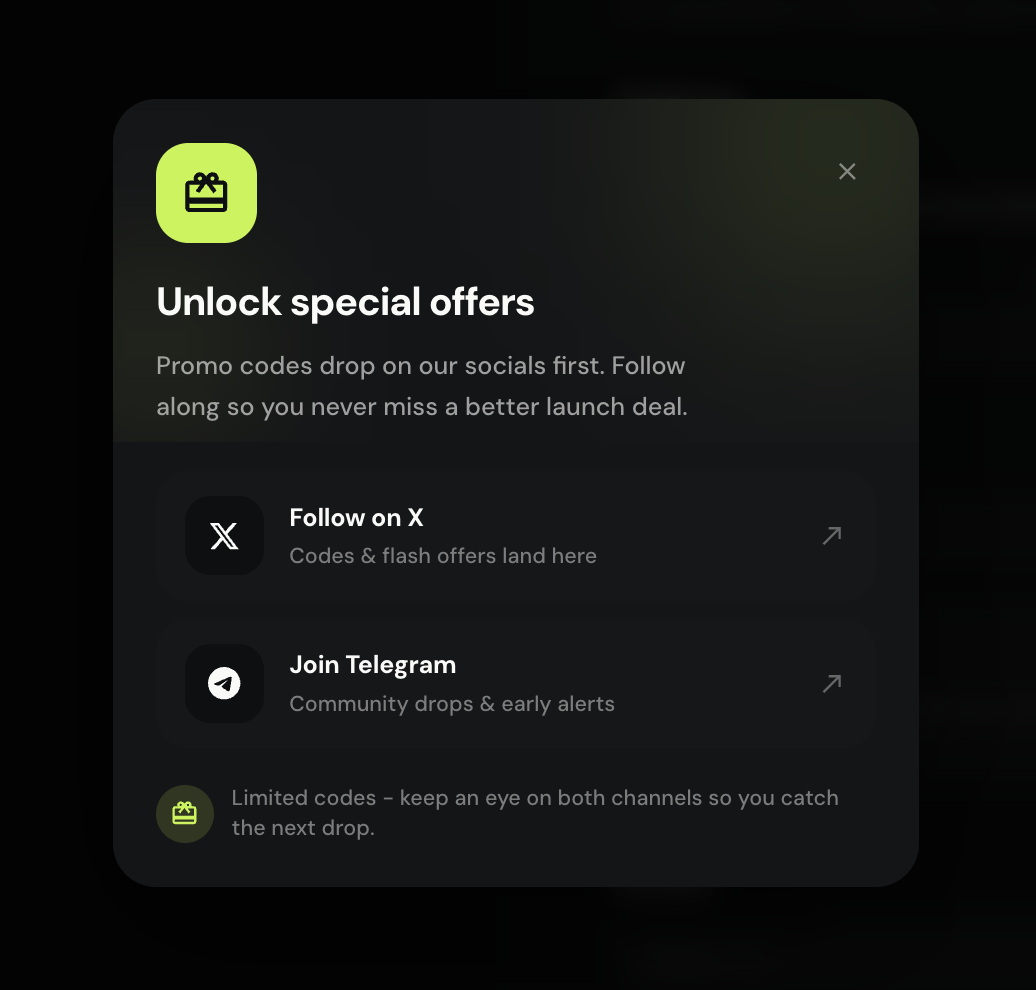
Where to find it
- /launchpad/create → Instant or Bonding → Classic (V3) → Promotions
- /launchpad/create → Instant or Bonding → Tax (V4) → Promotions
- Up to two codes with live preview when the form allows
- Leave blank for standard Classic or Tax terms
How it works for you
A promotion code is validated by Peeps before it changes your launch summary. Typing characters is not enough — the green / success preview is what tells you the code applied. Invalid or expired codes stay rejected until you fix or clear them.
Start a create flow
Go to /launchpad/create → Instant or Bonding → Classic or Tax. Fill identity fields as usual.
Open Promotions
Find the Promotions area on the form. Enter a code exactly as your partner shared it — watch for extra spaces when pasting.
Wait for preview
After a valid code, Peeps shows a preview of what changes. Do not confirm the launch until the preview succeeds and you understand the new terms.
Promotion preview success state
Image placeholder
A successful preview labels what kind of promo applied and what improved. Handle errors calmly
Invalid or expired codes are rejected with an error in the form. Fix the code, try another trusted code, or clear the field and continue with standard terms.
Gift vs special codes
After validation the form labels each code as gift or special (partner-style). You can use at most one of each kind on a launch — two gift codes or two special codes will conflict; one gift + one special is the usual max when both slots are filled.
| Kind (after validation) | Role | What to watch in preview |
|---|---|---|
| Gift | Campaign / gift-style boost on create terms | Summary lines that change vs a blank Promotions section — fees, shares, or other create terms the preview lists |
| Special | Partner / special-offer code (often referral-style) | Same — only confirm after the preview succeeds and the new lines look intentional |
The preview is the only trustworthy explanation of what changed for that code. Peeps does not expect you to memorize partner economics offline — if the preview errors or looks wrong, clear the field and launch on standard Classic V3 or Tax V4 terms.
Gift vs referral-style promos
Some codes are gift-style boosts; others are special / referral-style partner codes. The form labels the kind after validation. You generally cannot stack two codes of the same kind on one launch — follow the on-screen message if there is a conflict.
| Kind (typical label) | What you should do |
|---|---|
| Gift-style | Read the preview boost; confirm it matches what your partner described |
| Referral-style partner | Confirm you intended to attribute the launch to that partner |
| Conflict / stack error | Remove one code — follow the on-screen message |
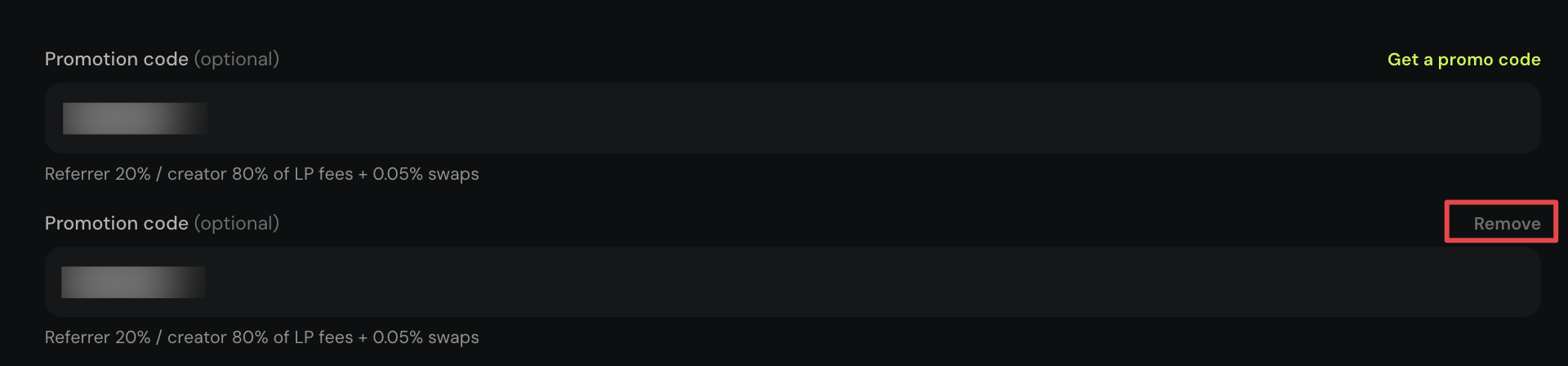
Promos are optional
If a promotion preview looks wrong, clear the code and continue with standard Classic V3 or Tax V4 terms. Gift-style and referral-style partner codes are labeled after validation; you generally cannot stack two of the same kind. Never pay strangers for a “secret” code and never share a seed to unlock a promo.
- No code = normal launch terms
- Wait for a successful preview before confirming
- Trusted partners only
Terms you will see
- Promotions
- Optional create-form section for partner or campaign codes.
- Gift / Special
- Validated promo kinds — at most one of each per launch; preview shows what changed.
- Preview
- On-form confirmation of what a valid code changes before you sign.